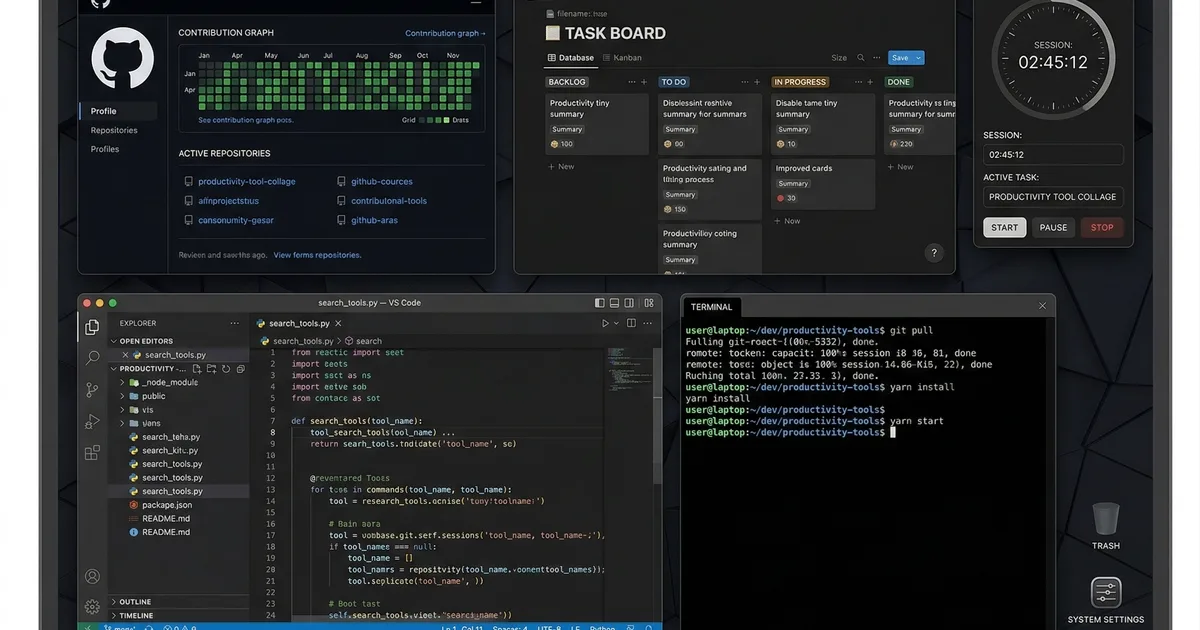

Why productivity matters more than hours
In the world of software development there is an uncomfortable truth: working more hours does not mean producing more value. I have seen developers who produce in 4 hours what others cannot achieve in 10. The difference is almost always in their tools and workflows.
After years of refining my setup, these are the 10 tools I use daily and recommend to any developer in Latin America.
1. VS Code with an optimized configuration
VS Code is the dominant editor for a reason: it is fast, extensible, and free. But the default installation is just the beginning. These are the extensions I consider essential:
Essential extensions
- Error Lens: Shows errors inline, no hovering needed. Saves hundreds of micro-interactions per day
- GitLens: Visualize blame, history, and authorship directly in the editor
- Todo Tree: Aggregates your TODOs and FIXMEs in an organized panel
- Prettier + ESLint: Automatic formatting on save. Never again format discussions in PR reviews
- Angular Language Service: Intelligent autocomplete for Angular templates
Settings that make a difference
editor.formatOnSave: true- Automatic formatting on saveeditor.linkedEditing: true- Edit HTML opening and closing tags simultaneouslyeditor.bracketPairColorization.enabled: true- Colors for bracket pairseditor.guides.bracketPairs: true- Guide lines between bracketsfiles.autoSave: onFocusChange- Auto-save when switching files
2. Warp Terminal (or Windows Terminal + Oh My Zsh)
The terminal is where we spend a significant part of the day. Investing in a good terminal experience pays dividends:
For macOS/Linux: Warp
- Intelligent AI-powered autocomplete
- Command history with semantic search
- Command blocks (each command is an independent block)
- Shared workflows
For Windows: Windows Terminal + Git Bash
- Configuration with profiles for different shells
- Custom themes to differentiate environments (dev, staging, prod)
- Oh My Zsh or Starship for an informative prompt
Aliases I use daily
These aliases save me hours every week:
gsinstead ofgit statusgc "message"instead ofgit commit -m "message"gpinstead ofgit pushnrsinstead ofnpm run startnrbinstead ofnpm run build
3. Claude and GitHub Copilot
AI tools are an integral part of my workflow in 2026, but I use them strategically:
Claude (Anthropic)
- For reasoning about architecture and design decisions
- For explaining complex code I am reviewing
- For generating documentation from existing code
- For debugging complex problems
GitHub Copilot
- Intelligent autocomplete while writing code
- Unit test generation
- Suggested refactoring
- Completing repetitive patterns
Personal rule
I use AI to accelerate, not to replace my judgment. I review and understand every AI suggestion before accepting it. A developer who does not understand the code they produce is a risk, not an advantage.
4. Notion for documentation and notes
Notion is my second brain. I use it for:
- Personal knowledge base: Code snippets, solutions to recurring problems, design patterns
- Project documentation: READMEs, architecture, technical decisions
- Learning journal: Every day I write down something new I learned
- Reusable templates: Client proposals, sprint planning, retrospectives
My workspace structure
- Inbox: Quick ideas and notes
- Projects: Documentation per active project
- Knowledge: Personal wiki organized by technology
- Templates: Templates for recurring documents
5. Linear for task management
After trying Jira, Trello, Asana, ClickUp, and Notion boards, Linear is the tool that stayed. Reasons:
- Speed: It is absurdly fast. Every action is instant
- Keyboard shortcuts: You can do everything without touching the mouse
- Cycles: Sprints with automatic velocity metrics
- GitHub integration: PRs automatically linked to issues
- Impeccable design: Inspiring for someone who builds products
For small teams in LATAM, Linear has a very generous free tier.
6. Raycast (macOS) / PowerToys (Windows)
An application launcher with superpowers:
Raycast (macOS)
- Launch apps, search files, calculate, convert units
- Snippets with automatic expansion
- Clipboard history (never lose something you copied)
- Extensions: GitHub, Linear, Notion, timer
- Built-in window management
PowerToys (Windows)
- PowerToys Run as launcher
- FancyZones for window management
- Color Picker for UI development
- File Explorer add-ons
The real impact
It seems trivial, but eliminating friction from repetitive tasks adds up. If you save 30 seconds every time you search for an app and you do it 50 times a day, that is 25 minutes daily. That is over 100 hours per year.
7. Arc Browser (or Firefox with Tree Style Tabs)
If you are a developer, you probably have 40+ tabs open. Arc Browser solves the chaos:
- Spaces: Separate tabs by context (work, personal, research)
- Split view: Two tabs side by side without external tools
- Auto-archive: Inactive tabs are automatically archived
- Boosts: Customize the CSS of any site
If you prefer Firefox, the Tree Style Tabs extension organizes tabs in a vertical tree that makes navigation easier.
8. Fig/Amazon Q for terminal autocomplete
Terminal autocomplete is a game-changer:
- Suggests commands based on your history
- Autocomplete for CLI tools (git, npm, docker, aws)
- Inline documentation of flags and options
- Works in any terminal
Reduces the time searching for "what was the flag for..." to zero.
9. Excalidraw for quick diagrams
Before writing code, I draw. Excalidraw is my favorite tool for:
- Architecture diagrams
- User flows
- Quick wireframes
- Explaining ideas in meetings
Why Excalidraw
- "Hand-drawn" style that reduces the pressure of perfection
- Real-time collaboration
- Component libraries
- Exports to PNG, SVG, and clipboard
- Open source and free
10. Toggl Track for time tracking
If you work as a freelancer or at an agency like Bemorex, tracking your time is non-negotiable:
- Accurate billing: You know exactly how much time you dedicate to each client
- Self-awareness: You discover where your time really goes
- Continuous improvement: You can measure whether your estimates improve over time
- Reports: Generate professional reports for clients
My flow with Toggl
- I start the timer when I begin a task
- I categorize by project and type (development, review, meeting, admin)
- I review the weekly report every Friday
- I adjust future estimates based on real data
Bonus: the physical setup
Software tools are important, but hardware and environment also impact your productivity:
- Second monitor: The biggest productivity jump you can make
- Mechanical keyboard: More comfortable for typing hours, and it simply feels good
- Ergonomic chair: Your back will thank you in 10 years
- Noise-canceling headphones: Essential if you work from home with family
- Good lighting: Enormously reduces eye fatigue
The principle behind all of this
All these tools share one principle: reducing the friction between your intention and the action. Every second you waste switching context, searching for a file, or typing a long command is one less second of deep work.
Productivity is not about doing more things. It is about doing the right things with the least effort possible, so you have energy and time for what really matters: solving problems, writing good code, and having a life outside of work.
Conclusion
You do not need all these tools from day one. Start with the ones that solve your biggest friction points and gradually incorporate the rest. What matters is that you are intentional with your workflow and constantly look for ways to improve.
Your most powerful tool will always be your brain. Everything else is an amplifier.

Comments (0)
Sign in to comment