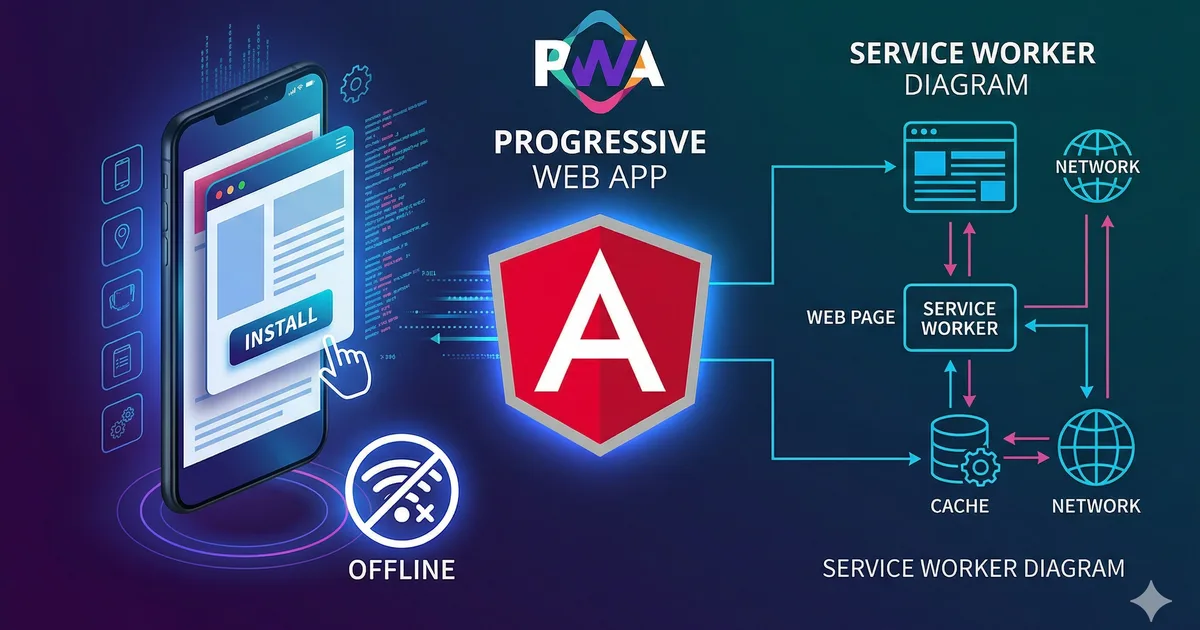

What is a PWA and why should you care
A Progressive Web App is a web application that offers a native app-like experience: it can be installed on the device, works offline, and has access to system APIs like push notifications and content sharing.
In Latin America, PWAs are especially relevant for two reasons:
- Unstable connectivity: Many users have slow or intermittent connections. Offline support is not a luxury, it's a necessity
- Low to mid-range devices: PWAs take a fraction of the space of a native app, don't need to be downloaded from a store, and update automatically
Prerequisites
To follow this guide you need:
- Angular 21+ (works from Angular 6, but we'll use modern APIs)
- Node.js 22+
- An existing Angular project
- HTTPS in production (service workers require HTTPS)
Step 1: Add PWA support
Angular CLI has a dedicated schematic that configures everything needed. Run the command in the first code block and the schematic will do the heavy lifting for you.
What files it generates
After running ng add @angular/pwa, your project will have:
ngsw-config.json: Service worker configurationsrc/manifest.webmanifest: PWA manifest- Placeholder icons in
src/assets/icons/ - Updated references in
index.htmlandapp.config.ts
Step 2: Configure the manifest
The manifest.webmanifest file defines how your app looks and behaves when installed:
{
  "name": "Bemore Learn - Learning Platform",
  "short_name": "Bemore Learn",
  "description": "Learn web development with courses, tutorials, and an active community",
  "theme_color": "#0a0a0f",
  "background_color": "#0a0a0f",
  "display": "standalone",
  "orientation": "any",
  "scope": "/",
  "start_url": "/",
  "icons": [
    {
      "src": "assets/icons/icon-72x72.png",
      "sizes": "72x72",
      "type": "image/png"
    },
    {
      "src": "assets/icons/icon-192x192.png",
      "sizes": "192x192",
      "type": "image/png",
      "purpose": "maskable any"
    },
    {
      "src": "assets/icons/icon-512x512.png",
      "sizes": "512x512",
      "type": "image/png",
      "purpose": "maskable any"
    }
  ],
  "screenshots": [
    {
      "src": "assets/screenshots/desktop.png",
      "sizes": "1280x720",
      "type": "image/png",
      "form_factor": "wide"
    },
    {
      "src": "assets/screenshots/mobile.png",
      "sizes": "750x1334",
      "type": "image/png",
      "form_factor": "narrow"
    }
  ]
}
Key fields
- display: standalone: The app looks native (no browser bar)
- theme_color: Status bar color on Android
- icons with purpose maskable: Required for adaptive icons on Android
- screenshots: Improve the installation experience in Chrome and Edge
Step 3: Configure the Service Worker
The ngsw-config.json file is where you define which resources to cache and how. Check the second code block to see the full configuration.
Asset Groups
There are two installation strategies:
prefetch: Files are downloaded immediately when the service worker installs. Use this for the app shell (HTML, CSS, main JS).
lazy: Files are cached only when first requested. Use this for assets like images and fonts that the user may not need immediately.
Data Groups
For dynamic data (APIs), you have two strategies:
freshness: Tries to get fresh data from the server. If it fails (timeout or no connection), uses the cache. Ideal for frequently changing data.
performance: Uses the cache first. Only goes to the server if the cache is empty or expired. Ideal for data that changes infrequently (static content, configurations).
Step 4: Handling updates
When you deploy a new version of your app, the service worker detects it and downloads it in the background. But you need to notify the user to reload and get the new version.
The third code block shows a service that listens for updates and asks the user if they want to update.
Integration in app.config.ts
Make sure the service worker is registered correctly:
import { provideServiceWorker } from '@angular/service-worker';
import { isDevMode } from '@angular/core';

export const appConfig = {
  providers: [
    provideServiceWorker('ngsw-worker.js', {
      enabled: !isDevMode(),
      registrationStrategy: 'registerWhenStable:30000',
    }),
  ],
};
The registerWhenStable:30000 option waits until the app is stable or up to 30 seconds, whichever comes first. This prevents the service worker from competing with the initial app load.
Step 5: PWA installation
To offer a custom installation experience, you can capture the beforeinstallprompt event:
import { Injectable, signal } from '@angular/core';

interface BeforeInstallPromptEvent extends Event {
  prompt: () => Promise<void>;
  userChoice: Promise<{ outcome: 'accepted' | 'dismissed' }>;
}

@Injectable({ providedIn: 'root' })
export class PwaInstallService {
  readonly canInstall = signal(false);
  private deferredPrompt: BeforeInstallPromptEvent | null = null;

  constructor() {
    window.addEventListener('beforeinstallprompt', (event) => {
      event.preventDefault();
      this.deferredPrompt = event as BeforeInstallPromptEvent;
      this.canInstall.set(true);
    });

    window.addEventListener('appinstalled', () => {
      this.canInstall.set(false);
      this.deferredPrompt = null;
    });
  }

  async install(): Promise<boolean> {
    if (!this.deferredPrompt) return false;

    await this.deferredPrompt.prompt();
    const result = await this.deferredPrompt.userChoice;
    this.deferredPrompt = null;

    if (result.outcome === 'accepted') {
      this.canInstall.set(false);
      return true;
    }
    return false;
  }
}
Step 6: Offline support
Custom offline page
When the user has no connection and navigates to an uncached page, you can show a custom offline page instead of Chrome's dinosaur:
<!-- src/offline.html -->
<!DOCTYPE html>
<html lang="en">
<head>
  <meta charset="utf-8">
  <title>Offline - Bemore Learn</title>
  <style>
    body {
      font-family: system-ui, sans-serif;
      display: flex;
      align-items: center;
      justify-content: center;
      min-height: 100vh;
      margin: 0;
      background: #0a0a0f;
      color: #f0f0f5;
    }
    .container { text-align: center; padding: 2rem; }
    h1 { font-size: 1.5rem; margin-bottom: 1rem; }
    p { color: #a0a0b8; }
    button {
      margin-top: 1.5rem;
      padding: 0.75rem 1.5rem;
      background: #ff530f;
      color: white;
      border: none;
      border-radius: 0.5rem;
      cursor: pointer;
    }
  </style>
</head>
<body>
  <div class="container">
    <h1>No internet connection</h1>
    <p>It looks like you're offline. Pages you previously visited
    are still available offline.</p>
    <button onclick="location.reload()">Retry</button>
  </div>
</body>
</html>
Step 7: Testing the PWA
In development
Service workers don't work in development mode. To test:
ng build --configuration production
npx http-server dist/mi-app/browser -p 8080
Validation checklist
Use Lighthouse in Chrome DevTools to audit your PWA. Aim for:
- Performance: 90+
- PWA: All checks in green
- Accessibility: 90+
- Best Practices: 90+
Installability criteria
Chrome requires these minimums to show the installation prompt:
- Served over HTTPS
- Has a manifest with name, icons (192px and 512px), start_url, and display
- Has a registered service worker with a fetch handler
- Not already installed
Advanced optimizations
Precache critical routes
In your ngsw-config.json, add the URLs you want to precache:
{
  "assetGroups": [
    {
      "name": "routes",
      "installMode": "prefetch",
      "resources": {
        "urls": [
          "/",
          "/cursos",
          "/blog"
        ]
      }
    }
  ]
}
Background sync
For advanced offline functionality (like saving progress without a connection), use Background Sync:
if ('serviceWorker' in navigator && 'SyncManager' in window) {
  const registration = await navigator.serviceWorker.ready;
  await (registration as unknown as { sync: { register: (tag: string) => Promise<void> } })
    .sync.register('sync-progress');
}
Push notifications
Push notifications require a push server and the browser's Push API. It's a complete topic on its own, but the basic setup with Firebase Cloud Messaging is:
- Configure FCM in the Firebase console
- Add
firebase-messaging-sw.js - Request notification permissions
- Register the device token in your backend
Generating real icons
The placeholder icons generated by the Angular PWA schematic are not suitable for production. Generate real icons:
- Create a base icon of 1024x1024 px in PNG
- Use a tool like PWA Asset Generator or RealFaviconGenerator
- Generate all necessary sizes (72, 96, 128, 144, 152, 192, 384, 512)
- Replace the placeholders in
src/assets/icons/
Conclusion
Converting an Angular app into a PWA is surprisingly straightforward thanks to the Angular schematic. With a few configurations you have an installable app with offline support and automatic updates.
In markets like Latin America, where connectivity is variable and users depend on mobile devices, a PWA can be the difference between an app that gets used and one that gets abandoned. Invest time in properly configuring the service worker and manifest; your users will notice.
Comments (0)
Sign in to comment